# outlook-classic-mcp
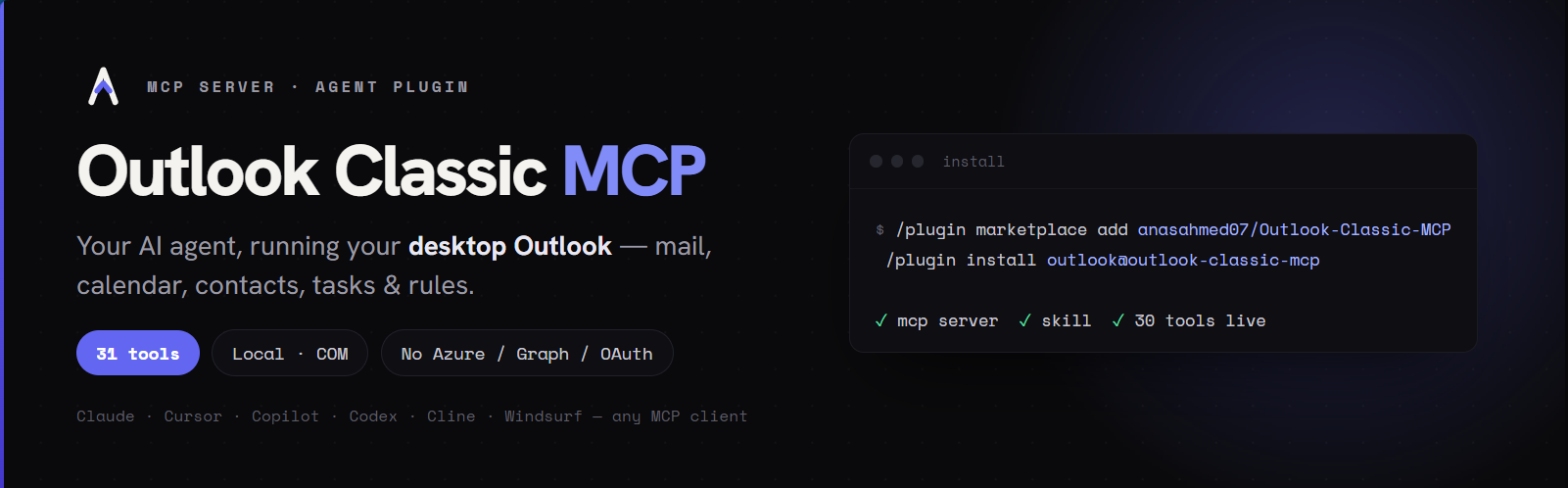
A local **MCP (Model Context Protocol) server** that exposes the **classic
Outlook desktop client** — mail, folders, calendar, contacts, tasks, color
categories, mail rules, and Out-of-Office status — to any MCP-aware
agent: Claude Code, Claude Desktop, Cowork, GitHub Copilot / VS Code
agent mode, Cursor, Cline, Continue, Windsurf, and anything else that
speaks MCP.
It talks to Outlook's COM API on Windows via `pywin32`, the same path
macros and Office add-ins use. Authentication piggybacks on whatever
account Outlook is already signed into — **no Azure / Entra app
registration, no Microsoft Graph API, no OAuth tokens.**
---
## Requirements
- Windows 10 or 11
- **Outlook desktop (Classic)** — the `OUTLOOK.EXE` shipped with
Microsoft 365 / Office. The "new Outlook" (`olk.exe`) is **not**
supported (no COM surface).
- Python 3.10+ (the installer fetches Python 3.11 via `uv` if you
don't already have one).
You do **not** need to open Outlook before starting the server — the
server auto-launches Outlook on its first COM call.
---
## Install
Three paths, simplest first.
### Option 1 — Agent plugin (recommended)
The repo doubles as a **plugin marketplace**. Installing the plugin registers the MCP server *and* loads the bundled [`outlook` skill](#agent-skill) (an operational reference that teaches the agent how to drive these tools) in one step. The MCP server itself is fetched on demand by `uvx` directly from PyPI — no `git clone`, no `pip install`, no `.venv` to maintain.
The plugin format started in Claude Code and is now supported by other agents too (Cowork, Copilot, Cursor, and others that adopted the plugin/skill format) — point your agent's plugin install flow at this repo. The commands below are for Claude Code:
Install [`uv`](https://docs.astral.sh/uv/) once if you don't have it:
```powershell
powershell -ExecutionPolicy ByPass -c "irm https://astral.sh/uv/install.ps1 | iex"
```
Open a fresh terminal so PATH refreshes, then in any Claude Code session:
```text
/plugin marketplace add anasahmed07/Outlook-Classic-MCP
/plugin install outlook@outlook-classic-mcp
```
Restart Claude Code (`/quit`, reopen). First call has a one-time 5–15 s pause while `uvx` resolves the package; subsequent calls are instant. Confirm with `outlook_whoami`.
To update later: `/plugin marketplace update outlook-classic-mcp` then `/plugin update outlook@outlook-classic-mcp`. To pull a fresh PyPI release of the server itself: `uv cache clean outlook-classic-mcp`.
### Option 2 — From PyPI with uv (any MCP client)
Works for any MCP client. The smart client installer auto-registers the server with Claude Desktop, Claude Code, Cursor, Cline, Continue, and Windsurf; for other clients (e.g. VS Code / Copilot agent mode), add the server to their MCP config manually — see below.
```bat
uv pip install --system outlook-classic-mcp
python -m outlook_mcp.scripts.install_to_clients
```
(`uv` is Astral's Python installer — see Option 1 above for the one-line install. `--system` writes to your system Python so `python -m outlook_mcp` resolves anywhere; drop the flag if you'd rather install into an active venv.)
Package: <https://pypi.org/project/outlook-classic-mcp/>.
---
## Smart client installer
`scripts/install_to_clients.py` detects which MCP clients are
installed on your machine and shows a checkbox menu:
```
Select which clients to register outlook-mcp with:
[ ] 1. Claude Desktop C:\Users\you\AppData\Roaming\Claude\claude_desktop_config.json
[ ] 2. Claude Code (via `claude` CLI)
[ ] 3. Cursor C:\Users\you\.cursor\mcp.json
Type a number to toggle, 'a' to select all, 'n' for none,
'enter' to confirm, 'q' to quit without changes.
```
For each toggled client it deep-merges
`mcpServers.outlook = {"command": ".venv/Scripts/python.exe", "args": ["-m", "outlook_mcp"]}`
into the right config (or runs `claude mcp add` for Claude Code).
Existing files are snapshotted to `<file>.bak` first. Re-running is
idempotent — it updates the entry instead of duplicating it.
Supported clients: **Claude Desktop, Claude Code, Cursor, Cline,
Continue, Windsurf.**
### Manual config (any other MCP client)
Any client not covered by the installer just needs the standard stdio
server entry in its MCP config:
```json
{
"mcpServers": {
"outlook": {
"command": "uvx",
"args": ["--from", "outlook-classic-mcp", "outlook-mcp"]
}
}
}
```
(VS Code / Copilot agent mode names the top-level key `servers` in
`mcp.json` instead of `mcpServers`; the entry itself is the same.)
---
## Tools
31 tools across 9 categories, all prefixed `outlook_*`.
| Category | Tools |
| -------------- | ----- |
| Mail | `list_mails`, `search_mails`, `get_mail`, `send_mail`, `reply_mail`, `forward_mail`, `move_mail`, `delete_mail`, `mark_mail`, `save_attachments` |
| Folders | `list_folders`, `create_folder` |
| Calendar | `list_events`, `get_event`, `create_event`, `update_event`, `delete_event`, `respond_event` |
| Contacts | `list_contacts`, `search_contacts` (saved contacts + org directory), `get_contact`, `resolve_name` |
| Tasks | `list_tasks`, `create_task`, `complete_task` |
| Categories | `list_categories`, `set_category` |
| Rules | `list_rules`, `toggle_rule` |
| Out-of-Office | `get_out_of_office` |
| Account | `whoami` — sanity check; shows the bound mailbox |
---
## MCP Apps — interactive UI in the chat
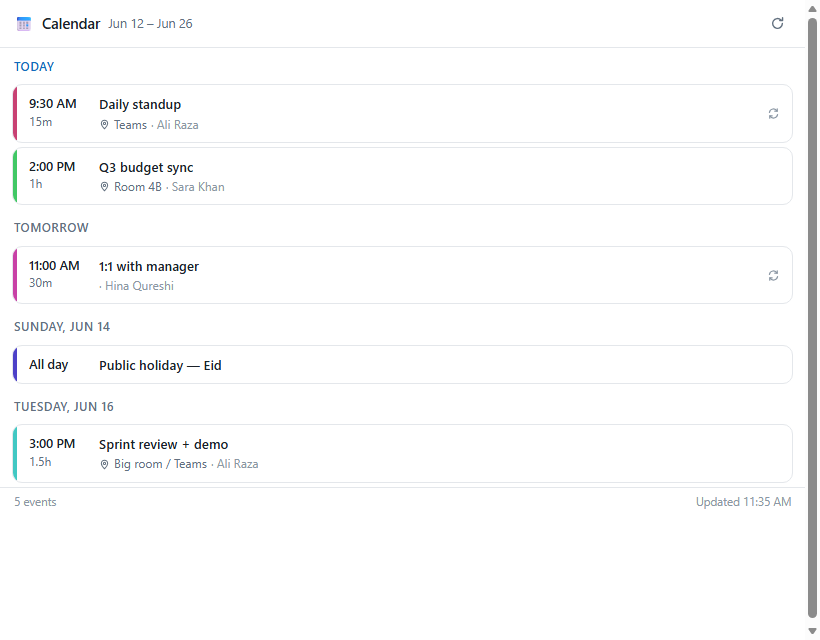
Since v0.3.0 the server implements the [MCP Apps extension](https://modelcontextprotocol.io/extensions/apps/overview)
(SEP-1865): read tools ship a self-contained HTML view that supporting
hosts (Claude, Claude Desktop, VS Code Copilot, Goose, Postman, …)
render in a sandboxed iframe right inside the conversation — instead of
a wall of text you get a real inbox, agenda, or contact list. Hosts
without MCP Apps support are unaffected and keep getting the usual
markdown.
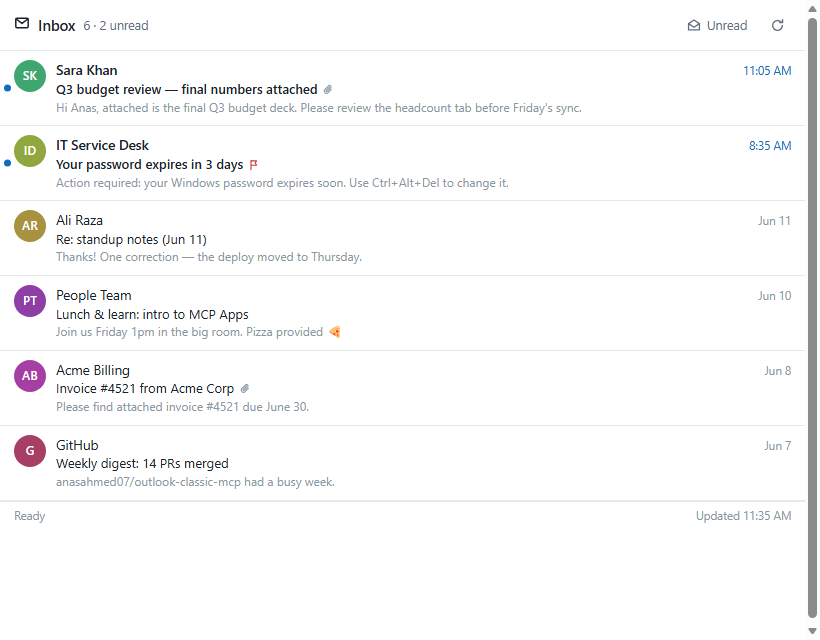
| View | Rendered by | What you can do in it |
| ---- | ----------- | --------------------- |
| Mail list | `list_mails`, `search_mails` | open mails in a reading pane, mark read/unread, flag, delete, filter unread, refresh |
| Mail reader | `get_mail` | full body + attachment list, mark, flag, delete |
| Calendar agenda | `list_events` | day-grouped agenda, expand an event for attendees + body, refresh |
| Contacts | `list_contacts`, `search_contacts` | live search (incl. org directory), copy addresses |
| Tasks | `list_tasks` | complete tasks, quick-add new ones, show completed, refresh |
The views are plain inline HTML/CSS/JS (no build step, no external
CDNs — the sandbox CSP blocks those anyway), follow the host's
light/dark theme, and talk back over the standard `postMessage`
JSON-RPC dialect: buttons in the UI call the same `outlook_*` tools the
model uses, and in-app actions (delete, complete, …) are reported back
into the model's context so the conversation stays in sync.
Technically: each UI tool carries `_meta.ui.resourceUri` pointing at a
`ui://outlook/*.html` resource (mime `text/html;profile=mcp-app`) and
returns markdown for the model **plus** `structuredContent` for the
app. To preview the views without an MCP host:
`python scripts/preview_ui.py`, then open
`.ui-preview/harness.html?view=mail-list` (any view name, optional
`&theme=dark`) in a browser.
---
## Agent skill
The repo also ships an agent **skill** at `skills/outlook/` (standard Agent Skills format — works in Claude Code, Cowork, Copilot, Cursor, and other agents that load skills) — a self-contained operational reference that teaches the agent how to drive the `outlook_*` tools correctly: folder reference syntax, the `EntryID` handle pattern, ISO-8601 date conventions, the `Recurrence` object, which calls have side effects to confirm before, and 19 worked recipes for common workflows (triage, drafting replies, weekly digests, scheduling meetings, recurring events, attachment handling, multi-mailbox setups).
Layout:
```
skills/outlook/
├── SKILL.md # always-loaded operational core
└── references/ # loaded on demand
├── tools.md # full per-tool parameter / return-shape reference
├── recipes.md # worked multi-step workflows
├── gotchas.md # quirks + failure modes (Programmatic Access prompt, EX:/O= addresses, live rule toggling, sandboxed paths, etc.)
└── setup.md # install instructions an agent can walk a user through when the tools aren't connected yet
```
Installing the [plugin](#option-1--agent-plugin-recommended) auto-loads this skill alongside the MCP server. For an agent that supports skills but not plugins, copy the `skills/outlook/` directory into wherever it loads skills from.
---
## Conventions
**Folder references** can be:
- A well-known name: `inbox`, `sent`, `drafts`, `deleted`, `outbox`,
`junk`, `calendar`, `contacts`, `tasks`, `notes`
- A slash path: `Inbox/Projects/Acme`
- A path qualified by store name: `Mailbox - you@example.com/Inbox/Projects/Acme`
Use `outlook_list_folders` to discover paths.
**Dates / times** are ISO-8601 strings. Inputs without a timezone are
treated as local time (what Outlook stores); returned timestamps carry
the user's local UTC offset explicitly (`2026-06-10T16:33:22+05:00`).
**Item IDs** are Outlook `EntryID` strings. Read tools return them
on every item; pass them back to detail / edit / delete tools.
**Response format** — most read tools accept `response_format`:
- `markdown` (default) — pretty rendered output
- `json` — full structured data
**Errors** are raised, so the MCP host marks the response
`isError: true`. Error messages try to suggest a corrective next step.
**Filesystem paths** for `attachments=` and `output_dir=` must be
absolute and under the user profile (default sandbox). Set
`OUTLOOK_MCP_ALLOW_ANY_PATH=1` to disable the sandbox if you legitimately
need to read or write outside `%USERPROFILE%`.
---
## Architecture
```
+-------------------+
stdio <---> | FastMCP server | <-- one per process
+---------+---------+
|
await bridge.call(...)
|
v
+-------------------+
| OutlookBridge | persistent STA thread
| - one Dispatch | single Outlook.Application
| - work queue | handle, reused by every call
+---------+---------+
|
Outlook COM (auto-launches OUTLOOK.EXE if needed)
```
The MCP event loop never blocks on COM, and COM only ever sees the
one STA thread it needs. This is faster than per-call dispatch and
the Outlook process stays warm across calls.
---
## Development
```bat
.venv\Scripts\activate
pip install -e .[dev]
pytest
```
Smoke test the running server with the MCP inspector:
```bat
npx @modelcontextprotocol/inspector .venv\Scripts\python.exe -m outlook_mcp
```
> The inspector mangles backslashes on Windows — use forward-slash
> paths if you hit "ENOENT" errors.
Publish to PyPI:
```bat
publish.bat
```
(`TWINE_USERNAME=__token__`, `TWINE_PASSWORD=<pypi-token>`.)
---
## Notes & caveats
- The first call after a cold start takes a few seconds — Outlook's
COM surface boots up. After that, calls are fast (one Dispatch
handle is reused).
- Closing Outlook while the server is running is fine: the next tool
call detects the dead COM connection, relaunches OUTLOOK.EXE,
reconnects, and retries automatically (expect that one call to take
15–30 s).
- Outlook auto-launch relies on standard COM behavior. On
tightly-locked-down machines (UAC, group policy blocking COM
activation), open Outlook manually and try again.
- Send / reply / forward / delete may trigger Outlook's "Programmatic
Access" security prompts on some corporate machines. If your IT
policy blocks programmatic send entirely, write tools will fail —
read tools still work.
- Some properties (e.g. `SenderEmailAddress` for Exchange addresses)
come back as `EX:/O=...` distinguished names rather than SMTP. Use
`from_address` substring matching instead of exact equality — or
`search_mails(scope='from')`, which also matches the real SMTP
address.
- Toggling mail rules modifies live rules immediately — there is no
staging buffer. Confirm the rule name with `outlook_list_rules`
before calling `outlook_toggle_rule`.
- This server is **local-only**. Do not expose it over a network.
---
## Troubleshooting
**"Outlook COM thread did not become ready"** — Outlook didn't
auto-launch. Open it manually, sign in, then restart the MCP client
so it re-spawns the server.
**Inspector shows ENOENT for the python path** — known Windows
quirk; use forward slashes (`C:/Users/you/...`) instead of
backslashes.
**Send / reply gets blocked silently** — Outlook → File → Options →
Trust Center → Programmatic Access. The setting that works while
you're using the server is "Never warn me about suspicious activity
(not recommended)" — or have IT add the Python interpreter as a
trusted publisher.
---
## License
MIT